Step 1: Open your Child Policies
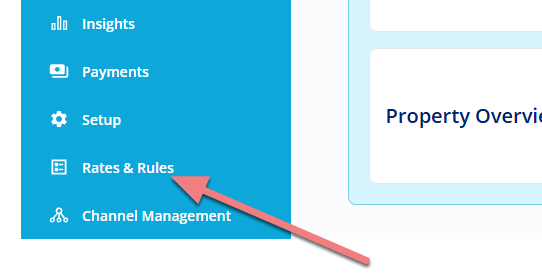
Click on Rates & Rules on your Main Menu.
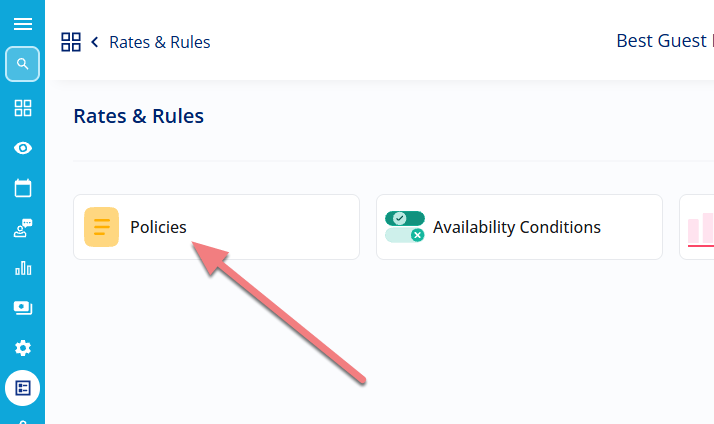
Select Policies
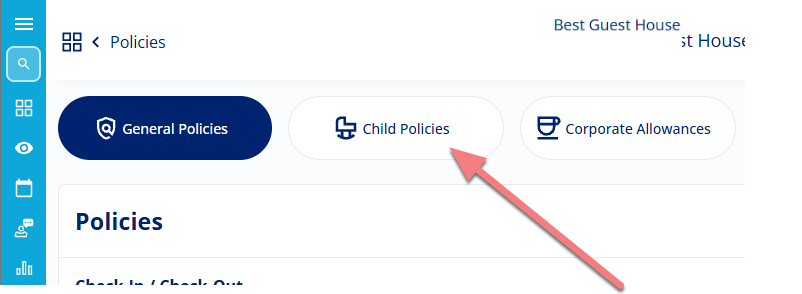
Then click on Child Policies.
Step 2: Choose whether you accommodate children
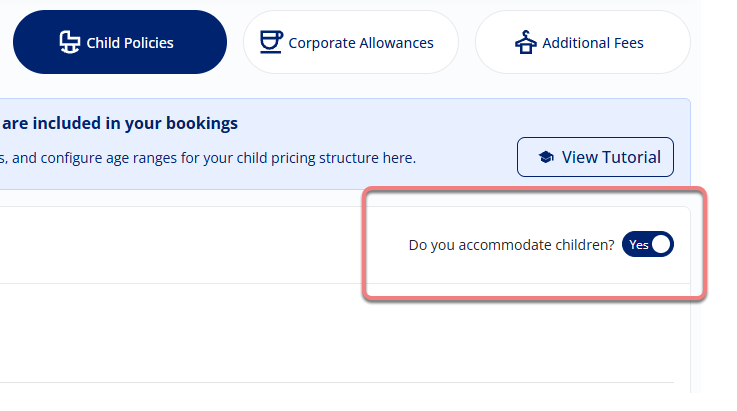
Locate the toggle labelled Do you accommodate children?:
- Yes: If your property welcomes children, switch the toggle to Yes to reveal your setup options.
- No: If your property does not accommodate children or is strictly adults-only, leave this toggle set to No and click Save. You're all done!
Step 3: Set a minimum age (Optional)
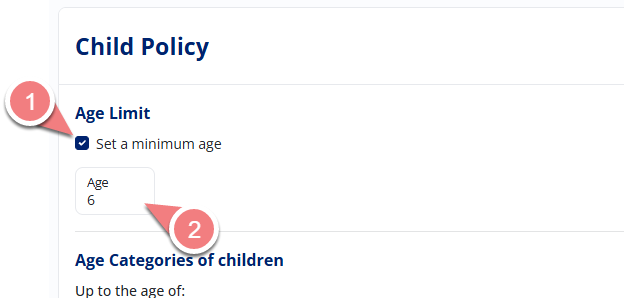
If you love hosting families but have safety considerations (such as unfenced swimming pools, open balconies, or steep stairs) or simply cater to older kids:
- Under the Age Limit heading, tick the box next to Set a minimum age.
- Type in your property's minimum age limit (for example, 6 if you only accept children aged 6 and older).
Step 4: Create your age categories and rates
Age categories make it easy to set up fair, flexible pricing based on a child's age (for instance, letting toddlers stay free while older children pay a discounted rate).
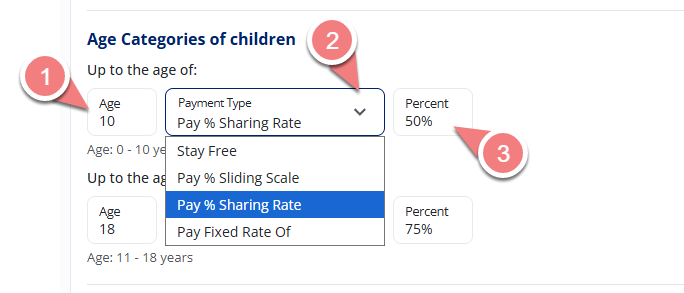
- Enter the closing age of your first age group (for example, entering 10 covers children from 0 up to 10 years old).
- Use the drop-down menu to choose how this age group is charged:
- Stay Free:
Children in this age band stay at no extra charge (perfect for infants in a cot). - Pay % of Sharing Rate:
The child pays a set percentage of your standard per-person sharing rate.
(For example, if your 2-adult sharing rate is R800 total - meaning R400 per person - and you set this to 50%, the child pays R200). - Pay % of Sliding Scale:
The child pays a percentage of the adult sliding-scale rate, depending on which person they are in the booking order.
(For example, for 2 adults and 2 children, the children become the 3rd and 4th persons, paying your set percentage of the 3rd and 4th person rates). - Pay a Fixed Rate:
The child pays a specific fixed nightly amount
(for example, entering 150 adds a flat R150 charge).
- Stay Free:
- Enter the relevant percentage or flat amount based on your chosen payment type.
- Add any additional age categories you need to cover older children.
Step 5: Set your "1 Adult + 1 Child" rule
When two adults book with children, your standard policy applies naturally.
However, when one adult books with one child, this setting protects your revenue and ensures your room isn't under-priced:
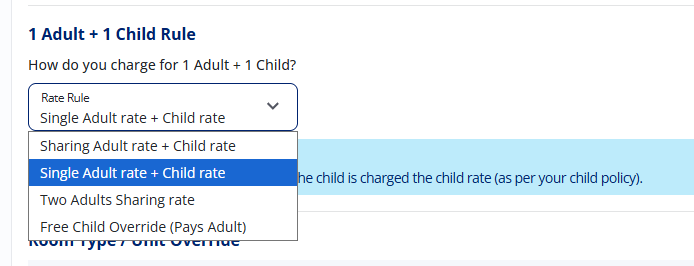
Select the option from the drop-down that best matches your pricing strategy:
- Sharing Adult rate + Child Rate:
The adult pays half of the standard 2-Adult rate, and the child pays their normal child rate.
(Note: If the combined total comes to less than your 1-Adult single rate, NightsBridge will automatically adjust it up to the 1-Adult rate plus the child rate so you don't lose out). - Single Adult rate + Child Rate:
The adult pays your standard single occupancy (1 Adult) rate, and the child pays their normal child rate. - Two Adults sharing:
Both the adult and the child are charged as adults (the full 2-Adults rate), unless the child's age category is set to "Stay Free". - Free Child Override (pays Adult):
Both guests are charged at the full 2-Adults rate, even if your child policy is normally set to "Stay Free".
Step 6: Set Room Type overrides (If needed)
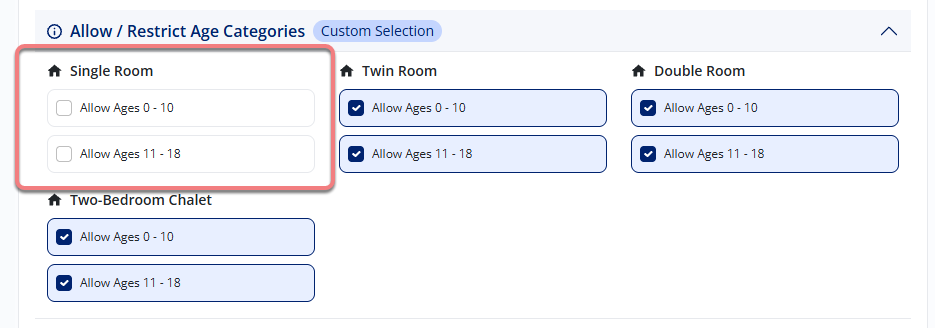
Some rooms - such as a honeymoon suite, luxury loft, or executive unit - might not be suitable for young children or you may want to have a dedicated child policy for the specific room type.
- Scroll down to your room types to review your overrides.
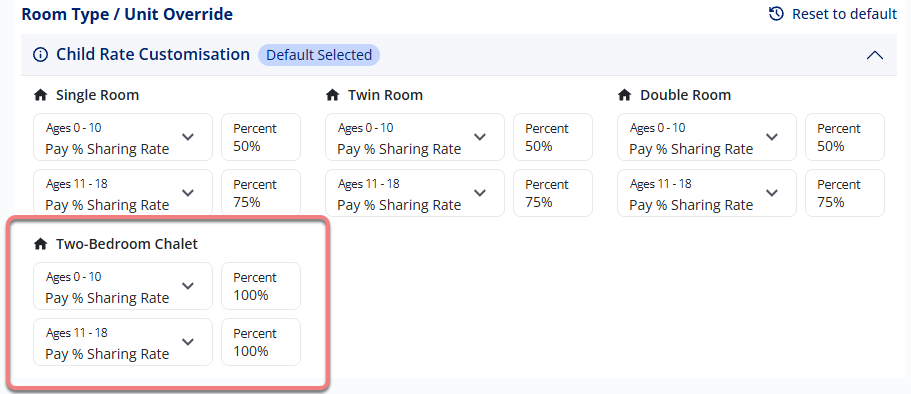
If a specific room should not host children at all, or if you only allow certain age categories in family suites, you can easily restrict or customise child acceptance room by room.
Need to override your Child Policy rates for a specific season?
During peak holiday periods or other high-demand dates, you may want to charge a different rate for children staying in specific room types. A seasonal Child Policy Override allows you to set a fixed child rate for an individual room type without changing your standard child policy.
Learn How to override your Child Policy rates for a specific season.
Step 7: Save & Publish!
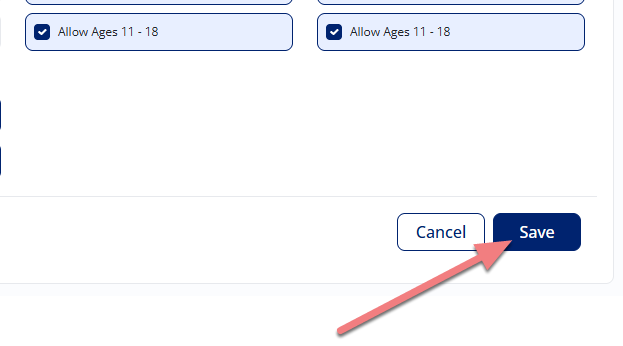
Once you're all set up, click on Save.
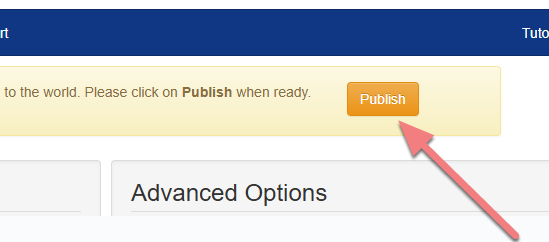
Hop over to your NightsBridge Setup and click the Publish button to distribute your changes.